

AI Tools Blog
Gemini Edit PDF: How In-Chat File Editing Works

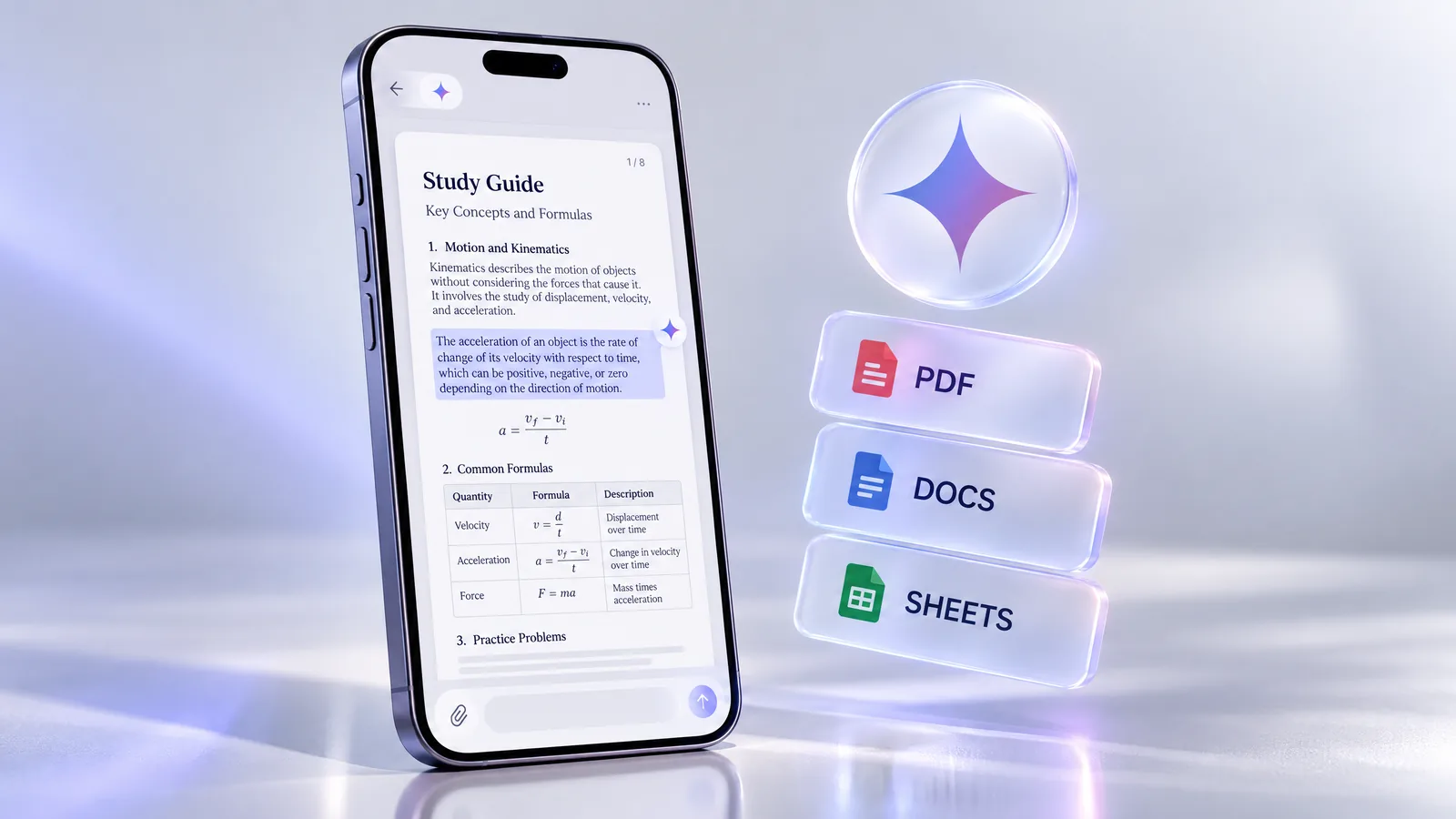
Gemini edit PDF is now a real workflow rather than a copy-paste chore: since October 29, 2026, the Gemini app can open a file it generated in full screen, let you type changes directly, and rewrite only the section you highlight. It is free for every user, but only PDFs can be edited on mobile; everything else needs the web app. This guide sorts out which formats are editable where, how to get clean results, and which questions Google's announcement leaves open.
- On October 29, 2026, Google added in-chat generation, preview and editing of documents, PDFs, presentations, spreadsheets and code to the Gemini app, for all users in every supported language.
- PDFs can be edited on web and mobile; Google Docs, Sheets, slide decks, Markdown, TXT and code are web-only.
- You can type edits in full-screen view, highlight text to ask about it, or ask Gemini to rewrite or restyle just the selected part.
- Gemini has generated .docx, .xlsx, .csv, LaTeX and RTF files since April, but those formats are not on October's list of editable files.
- Uploads are capped at 10 files per prompt and 100 MB per non-video file; longer audio and video need Google AI Pro or Ultra.
What changed on October 29
Google’s announcement is short: the Gemini app can now generate, preview and edit documents, PDFs, presentations, spreadsheets, code and other files directly in a chat. The feature builds on an April 29, 2026 update that let Gemini produce downloadable files from a prompt. That earlier version solved the first draft but not the second one. If a generated report had a wrong date or a clumsy paragraph, you either regenerated the whole file and hoped nothing else moved, or downloaded it and fixed it in another app.
Now the file stays open in the conversation. Google’s demo starts with photos of handwritten lecture notes, which Gemini turns into a PDF study guide. The user then corrects it by hand, highlights sections for Gemini to revise and asks follow-up questions, all in the same session. According to Chrome Unboxed’s write-up of the demo video, a highlighted summary table is turned into a bar chart with the request “show this as a graph instead.”
Web vs mobile: which formats you can edit where
The platform split is the detail most coverage glosses over. In Google’s words, PDF preview and editing is supported on both web and mobile, while all other formats are web-only. Here is the full picture, combining the April and October announcements (checked October 30, 2026):
| Format | Generate and download | Edit on web | Edit in mobile app |
|---|---|---|---|
| Yes | Yes | Yes | |
| Google Docs | Yes | Yes | No |
| Google Sheets | Yes | Yes | No |
| Slide decks (Google Slides) | Yes | Yes | No |
| Markdown and TXT | Yes | Yes | No |
| Code files | Yes | Yes | No |
| .docx, .xlsx, .csv, LaTeX, RTF | Yes | Not listed | Not listed |
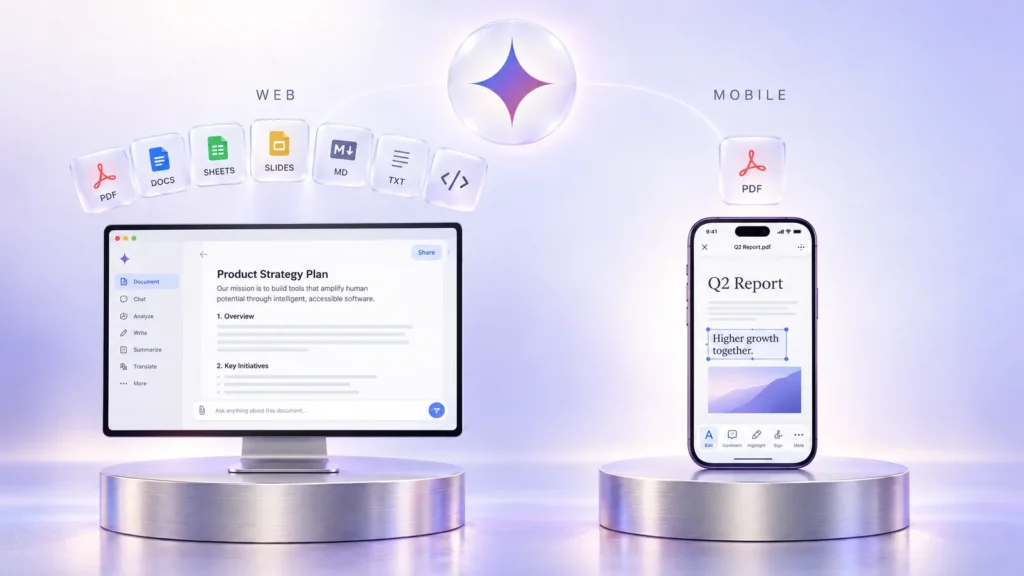
Two practical consequences follow. First, if your work lives on a phone, plan around PDFs; for a deck, a spreadsheet or a script, open gemini.google.com in a desktop browser. Second, if the end product has to be a Word or Excel file, do the editing in Google Docs or Sheets format and convert at the end, because October’s list of editable formats does not mention .docx or .xlsx.
How to edit a PDF in Gemini, step by step
Google describes three ways to work on a file: expand it to full screen and type, highlight text to ask questions about it, or ask Gemini to refine the file, including text or visuals in a selected section. In practice the workflow looks like this:
- Create the file in the chat. Ask for a specific format, for example “turn these notes into a two-page PDF study guide with a summary table.” Naming the format up front avoids getting a plain text answer you then have to convert.
- Open the preview full screen. The file appears in Gemini’s response; expanding it puts you in the editable view.
- Type small fixes yourself. Names, dates, figures and typos are faster to fix by hand than to describe in a prompt, and manual edits don’t risk Gemini changing text you didn’t ask it to touch.
- Highlight and instruct for bigger changes. Select a paragraph or table and describe the change: shorten it, turn it into bullets, convert it into a chart. Only the selection is rewritten.
- Ask questions in place. Highlight a formula or term to get an explanation in the chat without altering the file.
- Export. Since April, most formats can be downloaded to your device or exported to Google Drive. Chrome Unboxed reports an export menu in the top bar of the editing view that saves the file as a PDF or sends it to Drive.
Can Gemini edit a PDF you upload?
This is the most common question, and Google’s answer is not explicit. The announcement and its demo describe editing files that Gemini generates in the chat; they do not say you can open an existing PDF from your computer and edit it in place. The dependable route today is to upload the PDF, ask Gemini to recreate it as a new PDF, and edit that copy. Treat this as a rewrite, not a true PDF editor: scanned documents, signed contracts and fillable forms will lose their original layout.
Gemini file upload limits by plan
Google hasn’t published separate limits for in-chat editing, but the source files you upload follow Gemini’s standard rules. From Google’s help center (checked October 30, 2026):
| Limit | Free account | Google AI Pro / Ultra |
|---|---|---|
| Files per prompt | Up to 10 | Up to 10 |
| Size per file (non-video) | 100 MB | 100 MB |
| Size per video file | 2 GB | 2 GB |
| Total video length | 5 minutes | 1 hour |
| Total audio length | 10 minutes | 3 hours |
| Code folder or GitHub repo | 5,000 files, 100 MB | 5,000 files, 100 MB |
Every file inside an uploaded folder counts toward the 10-file cap, and ZIP archives are limited to 10 files and 100 MB with no audio or video inside. Google also applies rolling limits on how much you can upload and analyze over time, without publishing a number. For document work, the free tier is close to the paid one. The gap shows up if you want to turn a long lecture recording or meeting audio into a PDF summary: the free account stops at 10 minutes of audio.
Where it helps, and where to stay careful
- Study material: Google’s own example. Photographed notes become a structured PDF, and missing pieces are filled in without leaving the chat.
- Reports and summaries: condensing a long thread into a one-page PDF has worked since April; fixing a title or a single paragraph no longer means regenerating everything.
- Budgets and tables: in Sheets format, you can select a range and ask for a chart. This is a web-only task.
- Code and docs: small scripts and README files can be patched in place, which is handy for quick iterations.
The caveats are the usual ones for generated documents, plus a few specific to this release. A neat spreadsheet is not proof the totals are right, so check figures and anything quoted from sources. Google hasn’t said how well complex layouts survive repeated edits, or how the editor handles very long documents, so try it on something low-stakes first. And if you work with confidential material, check your work or school account’s AI policy before uploading.
Who can use it, and do you need a paid plan?
Google says the capabilities are available to all users in all languages where the Gemini app is available, with no plan restriction mentioned. A free Google account is enough to try Gemini edit PDF workflows today. The rollout is server-side, so the editable view may take a few days to reach some accounts; if you don’t see it, refresh and try the web app.
A paid plan only matters if you rely on long audio or video as source material, or hit the rolling usage limits often. If that describes you, the related option in our store is below; the package covers what its product page states.
 Google AI Pro – 1 Month InviteIn stock Price range: $3.50 through $9.00
Bottom line
In-chat editing closes the gap between asking Gemini for a document and having one you can send. Use the web app for anything other than PDFs, keep Word and Excel conversions for the final step, edit small details by hand, and verify every number before the file leaves your desk.
Frequently asked questions
Can Gemini edit PDF files?
Yes. Since October 29, 2026, Gemini can preview and edit PDFs inside the chat on both web and mobile. You can type changes in full-screen view or highlight a section and ask Gemini to rewrite it. Google's examples focus on PDFs that Gemini itself generates.
Is in-chat file editing free?
Yes. Google says the feature is available to all Gemini app users in every supported language, and the announcement mentions no plan requirement. Paid plans raise audio and video upload limits, not editing access.
Can I edit Google Docs and Sheets in the Gemini mobile app?
Not yet. On mobile, only PDF preview and editing is supported. Google Docs, Sheets, slide decks, Markdown, TXT and code files can be edited only in the web app.
Can Gemini create Word and Excel files?
Yes. Since April 29, 2026, Gemini can generate .docx, .xlsx, .csv, PDF, LaTeX, TXT, RTF, Markdown and Google Workspace files, and most can be downloaded or exported to Drive. October's announcement doesn't list .docx or .xlsx among the formats you can edit in the chat.
What is the Gemini file upload limit?
Up to 10 files per prompt, 100 MB per non-video file and 2 GB per video. Total video length is 5 minutes on a free account and 1 hour on AI Pro or Ultra; audio is 10 minutes and 3 hours respectively.
How do I download an edited file?
Most formats can be downloaded to your device or exported to Google Drive. The export menu at the top of the editing view lets you save as PDF or send the file to Drive.
Sources
- You can now generate, preview, and edit documents, PDFs, presentations, spreadsheets, and more directly in Gemini — Google, 30 October 2026
- You can now easily generate files in Gemini — Google, 30 October 2026
- Upload & analyze files in Gemini Apps — Google Help Center, 30 October 2026
- Where you can use Gemini Apps — Google Help Center, 30 October 2026
- Google Gemini upgrades your workflow with direct in-chat doc and PDF editing — Chrome Unboxed, 30 October 2026
- Google Gemini can now create and edit PDFs, documents, and more right inside your chat — Digital Trends, 30 October 2026