
AI Tools Blog
Kling 4.0 Guide: 30-Second Clips, Keyframes and References

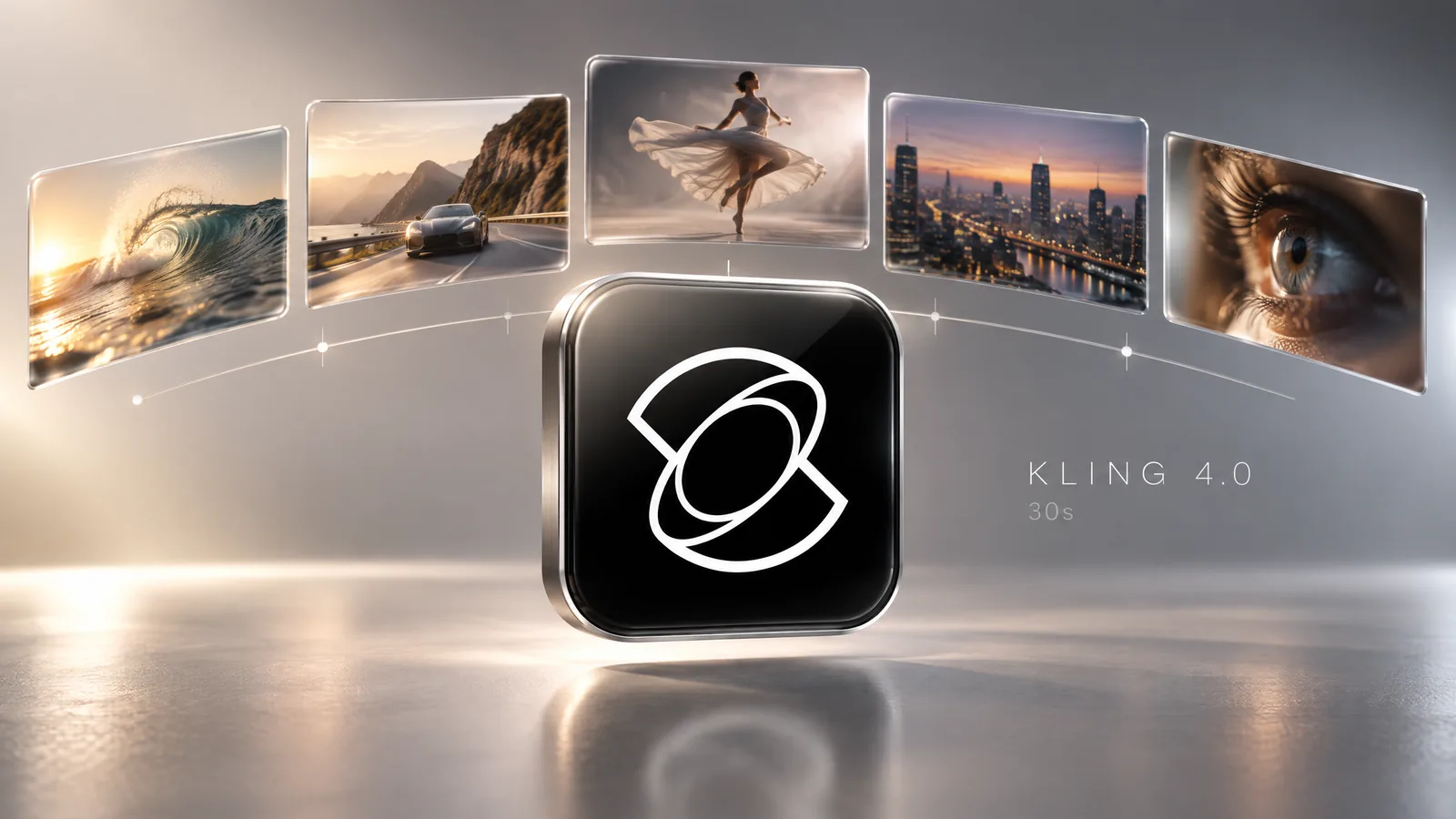
Kling 4.0 is Kling AI's new video model, fully launched on October 15, 2026, and its headline change is length: one generation now runs anywhere from 3 to 30 seconds, steered by up to 10 keyframes or up to 15 reference assets. Rather than repeat the launch announcement, this guide works through the official user guide the way a working creator would: which entry point to pick, how to plan a 30-second sequence, where the hard limits are, and which advertised features are still marked coming soon.
- Single-pass generation of 3 to 30 seconds, double Kling 3.0's 15-second ceiling.
- Two separate entry points: Omni Reference (up to 15 assets) and Keyframes (up to 10 frames). They cannot be combined in one task.
- Output at 720p, 1080p or 4K in 21:9, 16:9, 1:1, 9:16 or Auto.
- Kling 4.0 Flash is the fast option: up to 20 seconds at 720p, with no start/end frames or multiple keyframes.
- 10-bit HDR, two-minute video extension and API access are announced but not live yet.
What Kling 4.0 is and when it arrived
Kling AI first announced version 4.0 on September 28, 2026, opening a lighter Kling 4.0 Flash model to a limited group of users for early access that same day. The full model followed on October 15; the Seoul Economic Daily reported the release on October 16, dating it to the previous day. By the company’s own figures, Kling now has more than 100 million users across 224 countries and territories and serves over 50,000 businesses.
Kling frames the release around realism, control and professional-grade output, but the change you notice first is duration. Kling 3.0 tops out at 15 seconds per generation. The new model goes to 30 seconds in one pass, which matters more than it sounds: a full ad spot or a continuous tracking shot no longer has to be stitched from two clips, and stitching is exactly where faces drift, product colors shift and camera moves stutter.
Kling 4.0 vs Kling 3.0 vs 4.0 Flash
The table below is compiled from Kling’s official user guide and its Video 3.0 product page (checked October 17, 2026):
| Feature | Kling 3.0 | Kling 4.0 | Kling 4.0 Flash |
|---|---|---|---|
| Length per generation | Up to 15 s | 3–30 s in 1-second steps | Up to 20 s |
| Resolution | Up to 4K | 720p, 1080p, 4K | Up to 720p |
| Keyframes | Start and end frames | Up to 10, anywhere on the timeline | No start/end or multiple keyframes |
| Reference assets | Element and character consistency | 15 total (10 images, 5 videos, 7 elements, 3 voice profiles) | Omni Reference supported |
| Audio | Native audio, lip sync | Two-channel stereo, improved lip sync | Not specified |
| Prompt length | Not specified | Up to 8,000 tokens | Up to 8,000 tokens |

Kling positions Flash for quick iteration and short-form social clips. For anything longer, sharper, or anchored to specific frames, the guide points you to the full model.
Choosing an entry point: Omni Reference or Keyframes
The workspace has two ways in, and the rule the user guide repeats most is that you cannot mix them in a single task. Pick based on what you already have and what must stay fixed.
Omni Reference (the default)
Use this when you are working from assets: product shots, a character turnaround, a location photo, or a clip whose camera move you want to borrow. A task accepts up to 15 assets in total: up to 10 images (30 MB each), up to 5 videos (3 to 30 seconds each, no more than 30 seconds combined), up to 7 elements (at most 3 built from video) and up to 3 voice profiles. Kling numbers them automatically as @Image1, @Video1 and so on. The guide’s strongest advice here is to state each asset’s job in the prompt: identity, product shape and logo, scene layout, lighting style, or motion.
Keyframes
Use this when you need to lock what the frame looks like at specific moments. You can supply a first frame, first and last frames, or up to 10 keyframes placed anywhere on the timeline. This path takes images only, with no reference assets. Once you upload images, the aspect ratio follows your first keyframe, so prepare that first image in the target format, for example 9:16 for a vertical ad.
How to use Kling 4.0 keyframes for a 30-second shot
Here is Kling’s multiple-keyframes workflow turned into a checklist you can run on a real product video:
- Decide what the video is for. An ad, a short narrative, UGC, a product demo or a brand film each call for different pacing, references and prompt language.
- Map the beats. Kling’s own example plans five visual changes at 0, 6, 12, 20 and 28 seconds. You do not need all ten slots; add a keyframe only where the picture genuinely has to change.
- Prepare consistent frames. Keep the character, product and setting stable between frames. The guide lists changing character, environment, lighting and style in a single frame as a common mistake.
- Assign roles in the prompt. Roles are written in text, for example “Use @Image1 as the first frame and @Image2 as the last frame.” Timing works the same way: “Raise a hand at 3 seconds.”
- Write the prompt in time segments. Break it into 0–5 s, 5–12 s and so on. In Kling’s words, keyframes show the important moments and the prompt explains how the video moves between them: camera, transitions, pacing, dialogue and sound.
- Set length and resolution. Duration runs from 3 to 30 seconds in one-second steps, defaulting to 10. Resolution is 720p, 1080p or 4K.
- Review the full sequence. Check that event order matches keyframe order, that motion reads naturally, and that audio lines up with picture. Fix the specific part that misses rather than regenerating everything.
One prompt tip from the guide is worth pinning: swap abstract phrases like “premium look” or “cinematic feel” for concrete lighting, materials and composition. Stacking adjectives does not help, and the 8,000-token ceiling is a limit, not a target.
Audio, dialogue and language support
The model generates two-channel stereo alongside the picture. Music and sound effects are derived from the visuals; the only audio you can upload is a voice profile that defines a character’s voice (5 to 30 seconds of audio, up to 50 MB). Dialogue goes in quotation marks in the prompt, with the speaker’s age, tone, speed and emotion described.
The guide lists Chinese, English, Japanese, Korean, Spanish, Portuguese, German, French and Hindi as speech languages, plus several Chinese dialects and American, British and Indian English accents. If your market speaks something else, plan to record or synthesize the voice-over separately and lay it over a dialogue-free generation. Kling also says on-screen text and logos now hold steadier through camera moves, but test any non-Latin or accented characters before committing a full 30-second render.
Editing existing footage
Version 4.0 also edits video you already have. An editing task takes up to 5 clips, one of them the primary video, each 3 to 30 seconds and 30 seconds combined. You can add, replace or remove elements, swap backgrounds, and adjust expressions, colors, materials and camera angles. One detail is easy to miss: the prompt must say “Edit @Video1”. Writing “Reference @Video1” can make the model treat the job as reference-based generation instead. Ending the prompt with “Keep everything else unchanged” is recommended when you want a surgical change.
What is still coming soon
Several features from the launch coverage are still flagged as not yet available in the official guide (checked October 17, 2026):
- 10-bit HDR: listed for 1080p and 4K but marked coming soon in the guide’s overview. Some coverage describes HDR as live; where sources disagree, we follow the official guide.
- Video extension: extended videos of up to two minutes are announced but not open.
- API: Kling says the model will soon be available to enterprise customers and developers through its API. No API price has been published yet, so for now the model lives in Kling’s own creation workspace.
The Seoul Economic Daily also describes 4K and 21:9 as planned, while the official guide lists both as current options. The settings menu in your own workspace is the reliable answer for your account.
Credits and plans: what is known
Kling has not published per-second credit costs for the new model, or which subscription tiers include it, in its user guide. Third-party write-ups that quote 4.0 credit rates are estimating. The workspace shows the credit cost next to the generate button once you choose length and resolution, so the cheapest way to calibrate is a short 720p test before committing to a long 4K render.
If you want a monthly credit pack to try Kling with, the option we carry is below. Check in Kling’s workspace that 4.0 is enabled on your plan and how many credits a generation will use.
 Kling AI Standard – 660 Credits, 1 MonthIn stock Price range: $6.00 through $10.00
Who should switch
Anyone who needs a coherent shot longer than 15 seconds gets a real upgrade: e-commerce product videos, short brand films, music videos and pre-visualization are the use cases Kling itself highlights. For fast vertical clips, Flash or earlier models may still be enough. And if your project needs dialogue in a language outside the supported list, budget for a separate voice step from the start; it saves both time and credits.
Frequently asked questions
When was Kling 4.0 released?
Kling 4.0 was announced on September 28, 2026, when Kling 4.0 Flash opened to a limited group of users for early access. The full model launched on October 15, 2026.
How long can a Kling 4.0 video be?
The full model generates 3 to 30 seconds per pass in one-second steps, with 10 seconds as the default. Kling 4.0 Flash tops out at 20 seconds and 720p. An extension feature for videos up to two minutes has been announced but is not live yet.
Can I use keyframes and reference assets in the same Kling 4.0 generation?
No. Omni Reference and Keyframes are separate entry points and cannot be combined in one task. The Keyframes path accepts images only; to use reference images, videos, elements or voice profiles you need the Omni Reference path.
How many credits does Kling 4.0 use?
Kling has not published per-second credit costs for Kling 4.0 in its user guide (checked October 17, 2026). The workspace shows the cost next to the generate button based on the length and resolution you select, so run a short 720p test first.
Does Kling 4.0 support 10-bit HDR?
The official guide lists 10-bit HDR for 1080p and 4K but marks it as coming soon in its overview. Some coverage reports it as available; check the options in your own workspace.
Is Kling 4.0 available through the API?
Not yet. Kling says the model will soon be available to enterprise customers and developers via API, but no API pricing has been published.
Sources
- Kling 4.0 User Guide — Kling AI, 17 October 2026
- Inside Kling 4.0: A Complete Guide to AI Video Creation — Kling AI, 17 October 2026
- Kling 4.0 Multiple Keyframes: How to Control a 30-Second AI Video — Kling AI, 17 October 2026
- Kling Video 3.0 — Kling AI, 17 October 2026
- China's Kling AI Launches New Video Model, Wins Over Korean Director — Seoul Economic Daily, 17 October 2026
- What is Kling 4.0? Everything You Need to Know — fal.ai, 17 October 2026