

AI Tools Blog
How to lock ChatGPT chats with a PIN, and what the lock won’t do

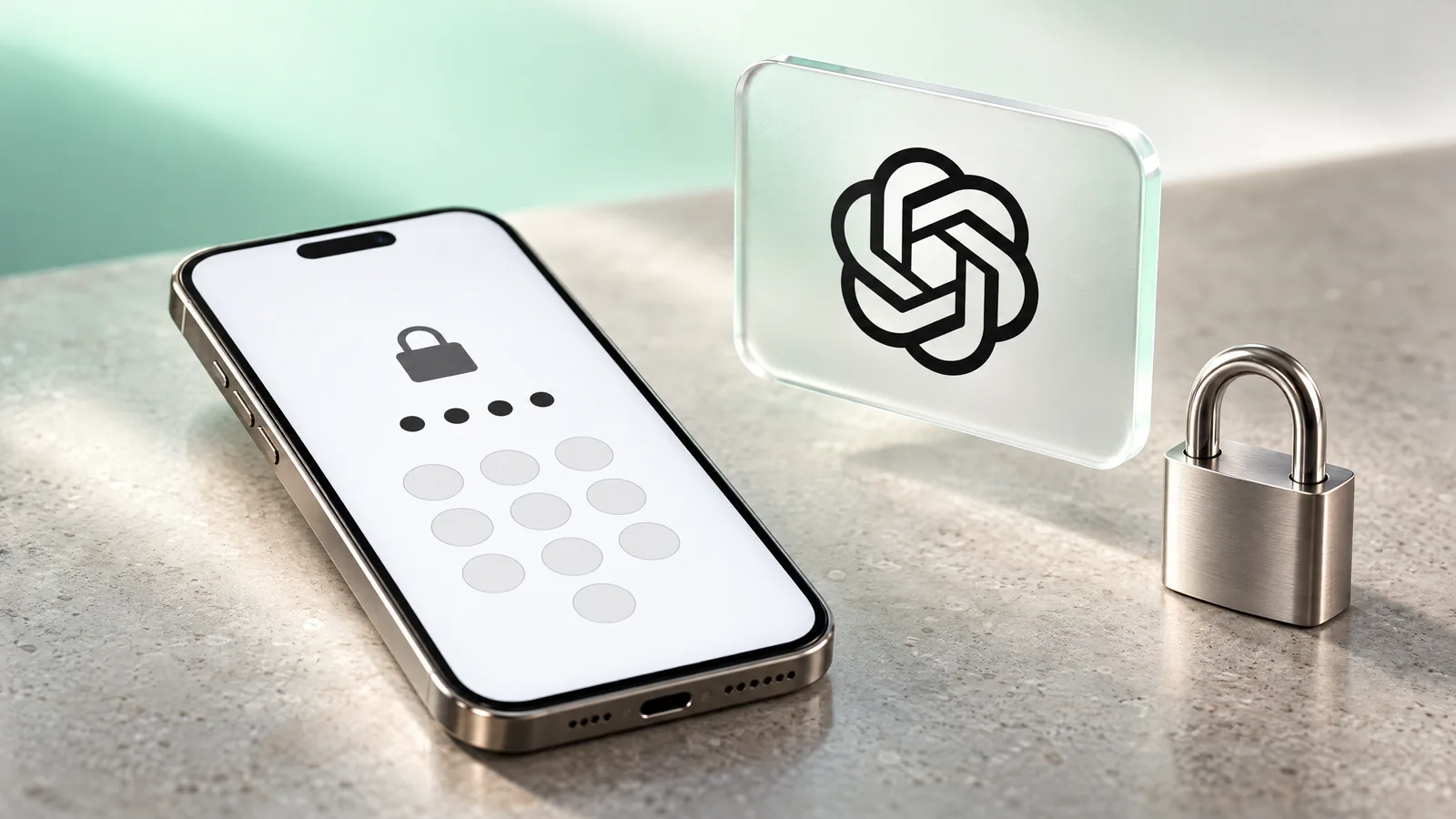
If you have been wondering how to lock ChatGPT chats, the option now exists: OpenAI began rolling out locked chats on October 20, 2026, on every consumer plan including Free. A locked conversation disappears from your sidebar, pinned chats and search, and opens only with a 4-digit account PIN or, on a phone, Face ID, Touch ID or your device unlock. The setup takes under a minute. The part worth reading carefully is everything the lock leaves unchanged, and the one mistake that permanently deletes your locked chats.
- Locked chats leave your regular history, pinned chats and search, and live in a Locked chats section under Projects.
- One 4-digit PIN covers your whole OpenAI account; phones can use Face ID, Touch ID or Android device unlock instead.
- Available on Free, Go, Plus, Pro, Business, Enterprise and Edu across web, iOS, Android and the new macOS/Windows app, rolling out gradually.
- Locking is not end-to-end encryption and does not change retention or your "Improve the model for everyone" setting.
- Resetting a forgotten PIN permanently deletes every locked chat, the memories stored only there and the files they protect.
What locked chats are and who gets them
According to OpenAI’s ChatGPT release notes for October 20, 2026, locked chats let you keep selected conversations in your account while hiding them from your regular chat history, pinned chats and conversation search. Once locked, a conversation moves to a dedicated Locked chats section under Projects in the sidebar. Opening that section requires a 4-digit PIN that belongs to your account rather than to a device, so the same code works on every supported device where you are signed in.
The release note lists Free, Go, Plus and Pro. OpenAI’s help article “Using locked chats in ChatGPT”, as reported by TechCrunch and Fortune, extends that to Business, Enterprise and Edu workspaces, with ChatGPT for Healthcare as the only exclusion. It works on the web, in the iOS and Android apps, and in the new ChatGPT desktop app for macOS and Windows in both Chat and Work mode. Because the rollout is gradual, a missing menu option usually means your account simply hasn’t received it yet.
Until now, the only ways to keep a conversation away from prying eyes were to delete it or to start it as a Temporary Chat. Locking adds a middle option: the conversation stays saved, but it no longer sits in a sidebar that anyone glancing at your screen can read.
How to lock ChatGPT chats, step by step
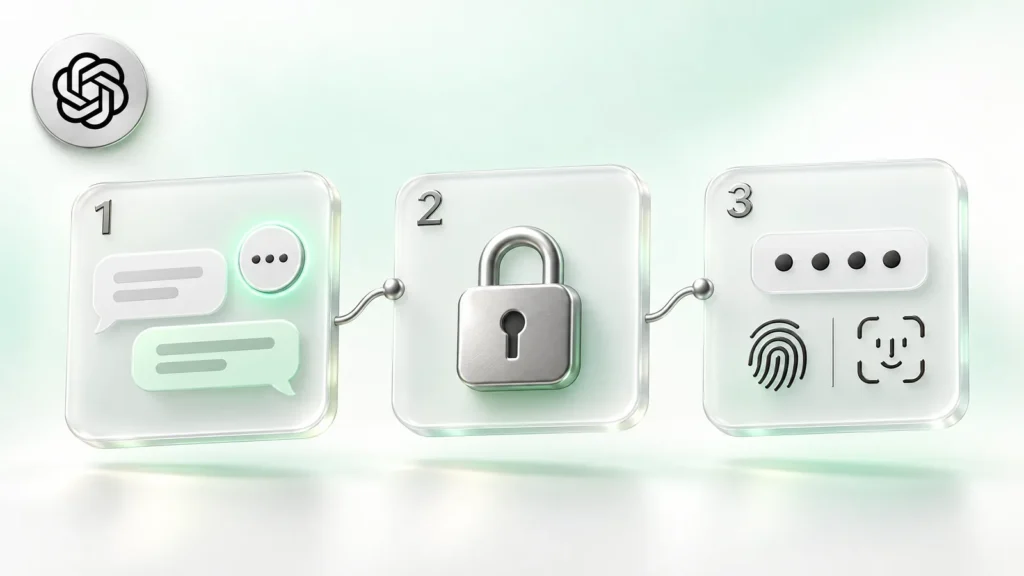
The flow is the same on web, mobile and desktop:
- Open the conversation you want to protect.
- Click the three-dot (more options) menu for that chat and choose Lock chat.
- Confirm the prompt.
- The first time, create your 4-digit account PIN. Skip birth years, 1234 and your phone’s own passcode.
- The chat now lives in Projects under Locked chats. Enter the PIN to open it.
To use biometrics on a phone, go to Settings, then Security and login, then Account PIN, and turn on Face ID, Touch ID or Android device unlock. On the web and in the desktop app you unlock with the PIN.
When the lock comes back on by itself
- In a browser: the PIN unlocks only the current tab. Refreshing or closing the tab locks the section again.
- On iOS and Android: access ends after the app has been in the background for one minute.
- Android only: screenshots of locked chats are blocked, so the capture comes out black.
Chats you can’t lock
Locking works on standard conversations stored in the cloud. Reporting based on OpenAI’s help article lists these exceptions:
- Temporary chats
- Archived chats
- Group chats
- Chats created from a shared link
- Chats with scheduled tasks or meeting recordings
- Codex sessions and local Work conversations on your computer
Voice mode still works inside locked chats on the web, iOS and Android, but not in the desktop app.
What locking protects, and what it doesn’t
OpenAI frames this as protection from the people around you: a colleague watching your screen share, a family member on a shared laptop, a friend you hand your phone to. It is not a change to how your data is stored. In the help article’s words, locking does not “create end-to-end encryption or a separate encrypted vault.” The table below sets locked chats against Temporary Chat, the feature people most often confuse it with.
| Question | Locked chat | Temporary Chat |
|---|---|---|
| Shows in sidebar history? | No, only inside Locked chats | No |
| Saved so you can return later? | Yes | No; OpenAI may keep a copy for up to 30 days for safety |
| Used for model training? | Follows your “Improve the model for everyone” setting | Not while it stays temporary |
| Memory | New details stay within locked chats and don’t reach regular chats | Doesn’t create or update memories |
| End-to-end encrypted? | No | No |
A few more limits that catch people out:
- Existing memories stay put. Anything ChatGPT remembered before you locked the chat remains in your regular Memory. Review it in settings if that matters.
- Shared links keep working. If you shared the conversation earlier, that link still shows what was shared. Messages sent after locking aren’t added, but you have to delete the link yourself to revoke access.
- Files are hidden, not moved. Files uploaded or created inside a locked chat are hidden from Space until you unlock. Files already saved in Space before you attached them stay visible there.
- Work accounts still log. In Enterprise and Edu workspaces, locked chats remain in the message logs available through OpenAI’s Compliance Platform. Admins can’t unlock your chats or reset your PIN, but the lock doesn’t override workspace policies or legal obligations.
Forget the PIN and the locked chats are gone
There is no recovery for a forgotten PIN, only a reset. Resetting permanently deletes every locked chat, any memories stored only inside locked chats, and files or other content protected only by the old PIN. OpenAI says the deletion cannot be undone and that OpenAI Support cannot recover it. Workspace admins can’t reset the PIN on your behalf either.
Changing a PIN you still know is safe and deletes nothing; it lives under Settings, Security and login, Account PIN. Store the PIN in your password manager, and if a locked conversation holds something you can’t afford to lose, such as a contract draft or a long research thread, export the important parts to your own files as well.
Lock, Temporary Chat or a settings change?
Pick the tool that matches the risk you actually have:
- Shared family computer or tablet: locking is built for this. Closing the browser tab is enough to relock.
- Screen sharing on Zoom, Teams or Meet: lock sensitive threads before the call so their titles never appear in the sidebar.
- You don’t want the conversation saved at all: start a Temporary Chat instead. Temporary chats can’t be locked later, so decide at the start.
- You don’t want your chats used for training: locking won’t do it. Turn off “Improve the model for everyone” in your settings.
- Company-managed account: assume your employer’s compliance logs still include locked chats, and keep personal topics on a personal account.
No paid plan is required. OpenAI’s release note covers Free users from day one of the rollout, so if your plan is Free or Go you only need to wait for the option to appear in your chat menu.
Frequently asked questions
How do I lock a chat in ChatGPT?
Open the conversation, choose Lock chat from its three-dot menu and confirm. The first time, ChatGPT asks you to create a 4-digit account PIN. The chat then moves to Locked chats under Projects and opens only with the PIN, or with Face ID, Touch ID or device unlock on a phone (checked October 27, 2026).
Is ChatGPT's locked chats feature free?
Yes. OpenAI's October 20, 2026 release note lists Free, Go, Plus and Pro, and reporting on the help article adds Business, Enterprise and Edu. ChatGPT for Healthcare is the only plan left out. The rollout is gradual, so the option may take a few days to appear.
What happens if I forget my ChatGPT PIN?
A forgotten PIN can only be reset, and the reset permanently deletes all locked chats, memories stored only in locked chats and files protected only by the old PIN. OpenAI Support can't recover them. Changing a PIN you still remember deletes nothing.
Are locked ChatGPT chats encrypted?
Not end to end. OpenAI says locking does not create end-to-end encryption or a separate encrypted vault, doesn't change how long chats are retained, and doesn't change your "Improve the model for everyone" setting, so locked chats can still be used for training if that setting is on.
What is the difference between a locked chat and a Temporary Chat?
A Temporary Chat isn't saved to history, doesn't create memories and isn't used for training while it stays temporary, though OpenAI may keep a copy for up to 30 days for safety. A locked chat stays saved, you can return to it any time, and it follows your account's training setting. Temporary chats can't be locked.
Can my employer see my locked chats?
Admins can't unlock your chats or reset your PIN. However, in Enterprise and Edu workspaces locked chats remain in the message logs available through OpenAI's Compliance Platform, and locking doesn't override workspace policies or legal obligations.
Sources
- Using locked chats in ChatGPT — OpenAI Help Center, 27 October 2026
- ChatGPT — Release Notes — OpenAI Help Center, 27 October 2026
- ChatGPT now lets you lock your chats — TechCrunch, 27 October 2026
- ChatGPT now lets you lock private chats with a PIN—but forgetting it could erase them for good — Fortune, 27 October 2026
- ChatGPT can now lock chats behind a PIN, but they are not encrypted — Notebookcheck, 27 October 2026
- ChatGPT now lets you lock sensitive chats behind a PIN — Engadget, 27 October 2026